Vindicia products are built to keep data secure and compliant and meet Payment Card
Industry (PCI) SSAE-18 SOC 1 Type 2 and SOC 2 Type 2 requirements and ISO 27001 security
requirements. Accordingly, Vindicia's merchant Portal users sign in to the Portal via
Vindicia's IDP (Identity Provider) app. Users define their own password and can reset it
within the simple-to-use Identity Provider app.
| Field | Guidance | Relevancy |
|---|
|
Update User Sign in Details - Password | A link to the Vindicia IDP app, where
you can change your password. You will need to enter your current
password in order to confirm the change.- Click the Update User Sign-In Details
link. The Vindicia IDP app appears open to the Profile
page.
- Click Security & sign-in menu on the
left.
- Click the Password arrow. The
password page appears.
- Enter your current password and the new password you
want.
Note: Your password must be at least 8 characters long
and must include at least one uppercase letter, one
lowercase letter, one numerical digit and one special
character. - Click Change password. A confirmation
message appears

| Optional |
| Update User Sign in Details - MFA Method Set Up |
- Click the Update User Sign-In Details
link. The Vindicia IDP app appears open to the Profile
page.
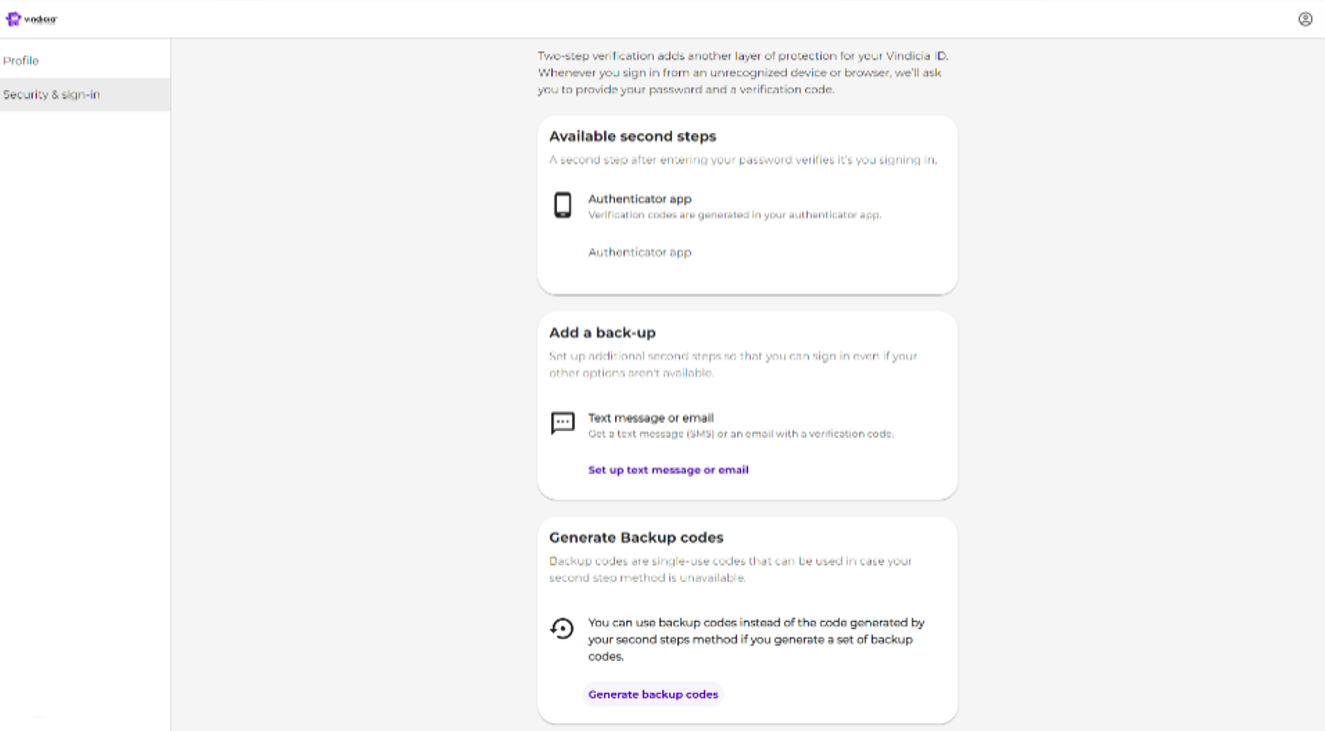
- Click Security & sign-in menu on the
left.
- Click the 1 Method Set Up arrow. The
Two-Step Verification page
appears.
- Select one of the follow MFA methods:
- Authenticator App
- Text Message or Email
- Generate Backup Codes
- Verify the additional verification method. For Authenticator
App do the following:
- By Authenticator App: open the app on your mobile
device and add an account for Vindicia.
Tip: You can either add by scanning the provided QR code
or by entering the provided string. An account
is created in the Authenticator App.
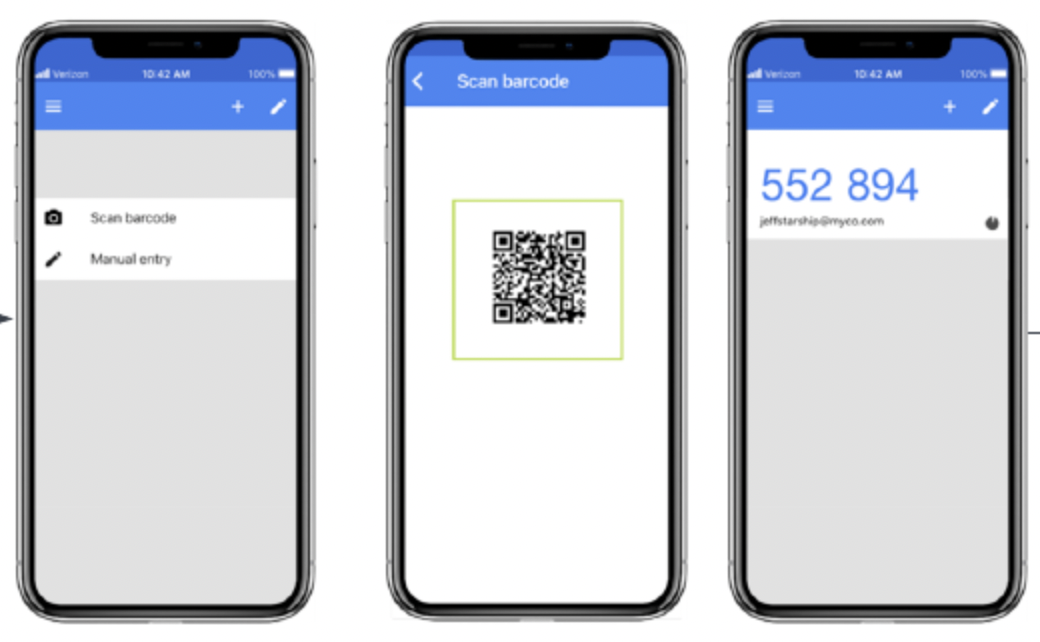
- Open the account, copy the displayed code and enter it
in the Enter code field.
- Click Verify.
- Click Continue.
- Verify the additional verification method. For Text
Message or Email do the following:
- By Text Message or Email: open your email or text
messages and find the new message sent to you.
- Copy the code you received and enter it in the
Enter code field.
- Click Verify.
- Click Continue.
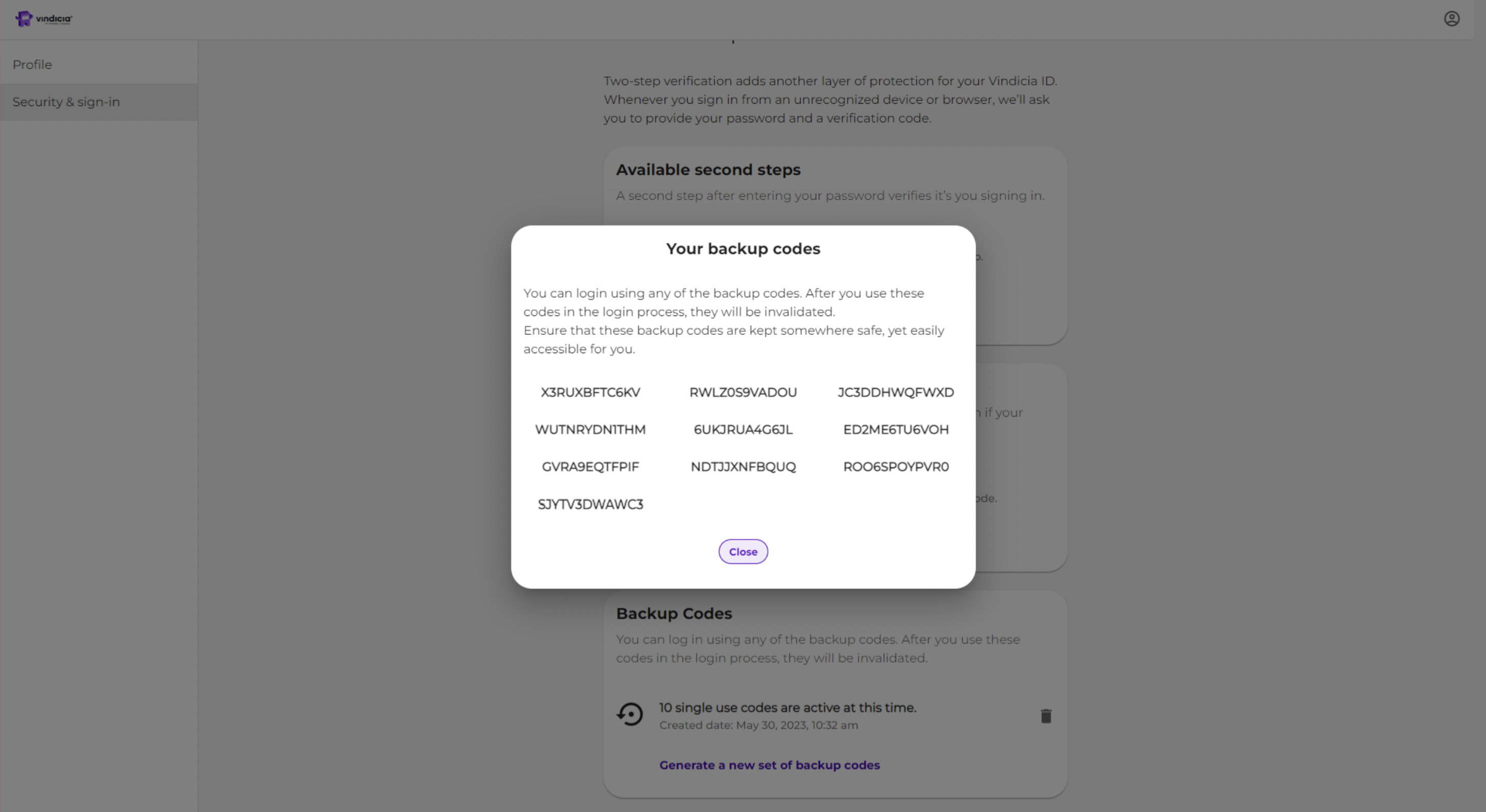
- To generate backup codes, click Generate Backup Codes. 10 backup
codes are generated.
Note: Ensure that these backup codes are
kept somewhere safe, but easily accessible to you. Each
backup code can only be used once. For more information on
using backup codes, see Log in with a Backup Code.
|
Optional |